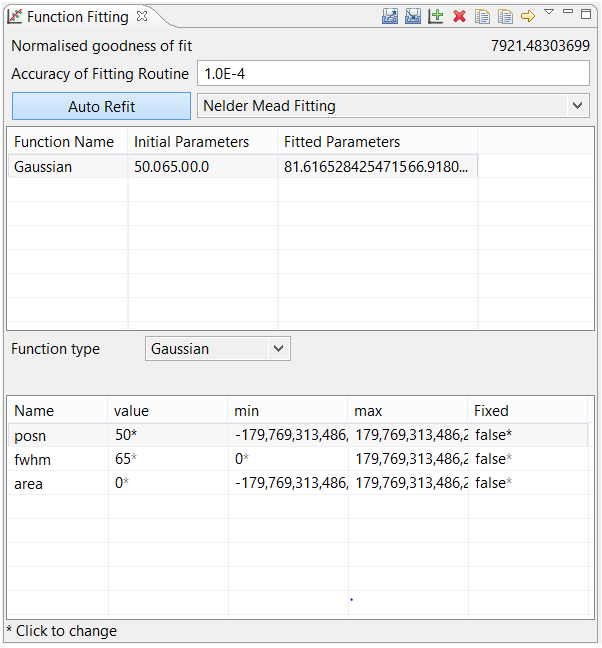
The DAWN Science function fitting tool was at that stage where all the functionality was in place but it needed some attention from a usability point of view. To drive the user design forward it was run through a lean design critique – a quick way of running a design critique to get the most worthwhile optimizations in a short space of time.The lean design critique is described below.
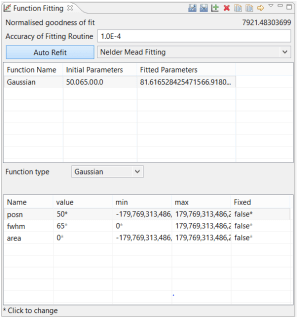 |
| The original function fitting tool |
1. Meet the requirements:
The most critical requirement is to have someone who understands who the different types of users are, what they use the tool for and how they use it. The design will be largely based on that information supplied so needs to be as accurate as possible. Then you need someone to apply some design principles. To keep it lean, ideally this will be 2, max 3 people (If it was just 1 person it would just happen, no need to formalise at all).
2. Identify the 90% task
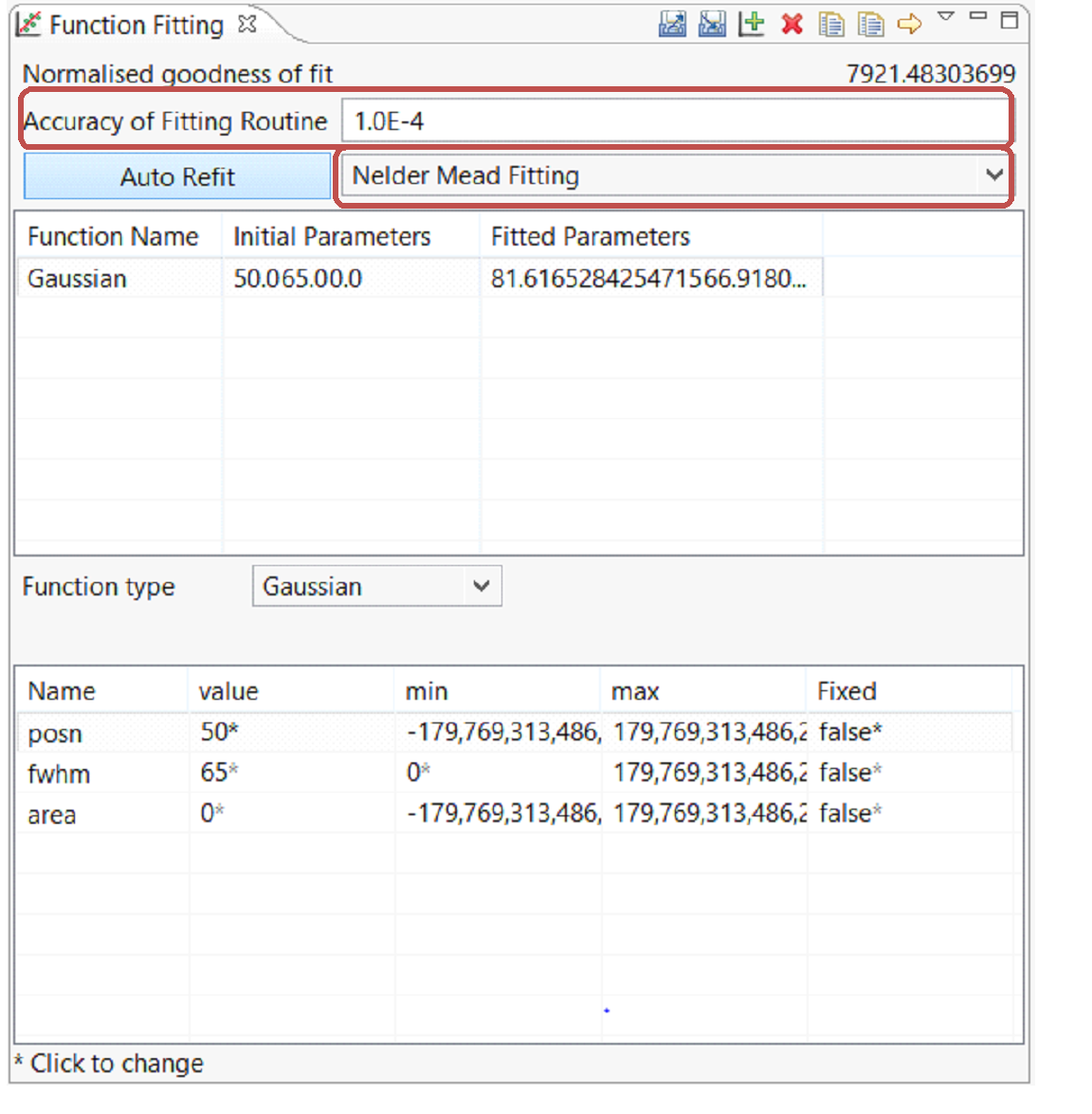
This is the job or set of jobs that will be carried out again and again (so 90% of the time) in this user interface. In this case, while it seems easy to say that that task is ‘function fitting’, it is important to go further and break that down to the key steps. As important is to identify the tasks that are infrequent, in this case things like importing and exporting of fit date to files is done occasionally. A good question to ask for each UI element is ‘How often is that used?‘ – in this case it highlighted that while users can change the accuracy of the fitting routine, in practice they rarely do.
In this step we breakdown the 90% task to its constituent steps and perform the tasks as a user would. Because we are keeping it lean we focus on the main steps and disregard the occasionally done steps (for example deleting or duplicating a function).
In this case a typical user scenario involves the following:
- Click ‘Auto ReFit’
- Select the desired function e.g. gaussian
- Set the parameters accordingly (mostly value)
- Look at plot to determine by eye if fit looks close enough
- If not, tweak parameters until fit is good
- When fit looks good, click update all to accept fit data
- Repeat tweaking until happy with fit, also measured by the goodness of fit value
This is the key step and worth taking the time to get as accurate data as possible.
4. Analyse Eye Travel, Mouse Travel & Clicks
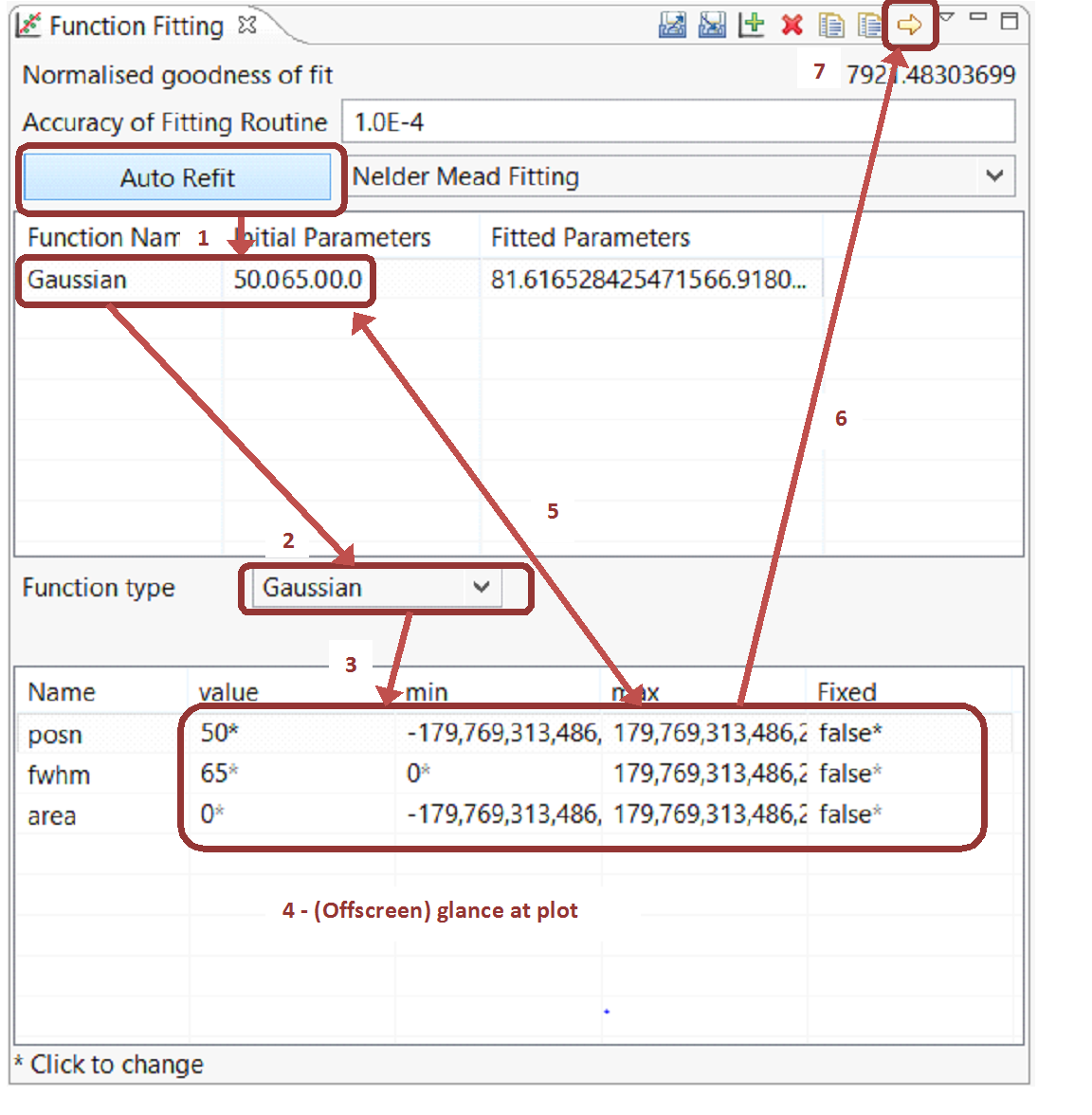
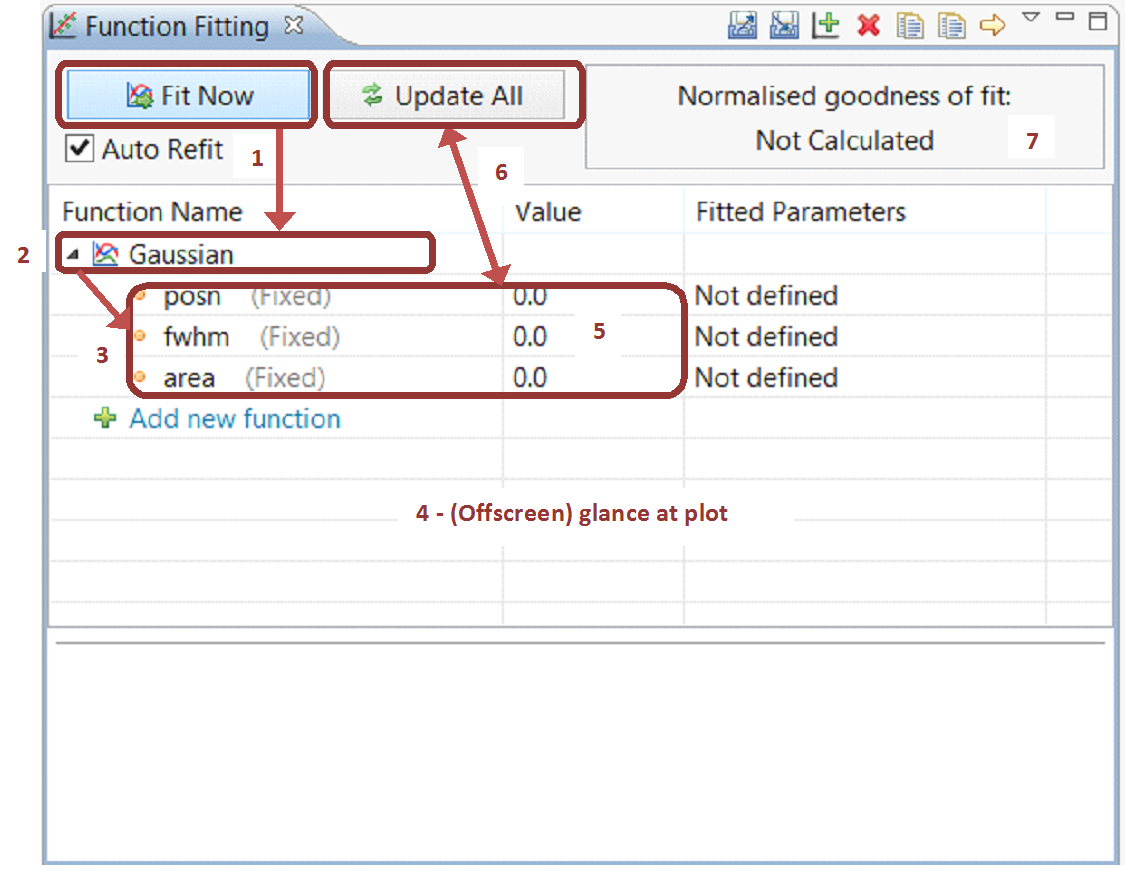
Using the steps identified, apply these to the UI with a big red marker to get an idea of the path the user has to follow with their eye or mouse. You can also count clicks to see how many it takes to perform different tasks.
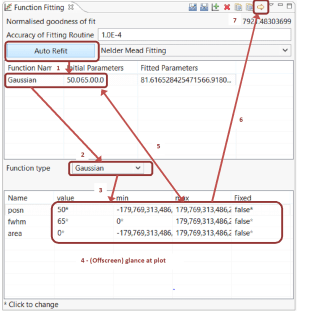 |
| Analysing mouse travel to perform 90% task |
|
|
Carrying out this step for this tool quickly highlighted the following areas:
– Step 5, repeatedly tweaking the parameters requires to and fro movement between two tables. It also highlights the same data (parameters) shown in two different tables which may not be obvious to the user that one is for editing and one for just viewing.
– Step 2 – an early step for the task is all the way down and in the middle of the UI – a non-obvious place for a user, particularly a new one to intuit what to do next.
– Step 6 – a key step is hidden in a toolbar alongside other anonymous buttons
In this case, mouse clicks were not used as a significant measure, particularly due to the iterative nature of tweaking the parameters.
5. Analyse Screen Space Usage
The principle here is that UI elements should be somewhat proportional to their importance such that they draw attention to themselves. So anything used for the 90% task needs to be big and obvious, while less important tasks should occupy less of ‘prime real estate’ screen space.
Running through this on the UI highlights to key areas that are prominent and well positioned but very infrequently used.
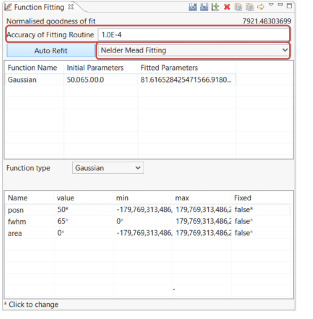 |
| Optimizing screen real estate |
6. Explore Existing Designs
Before you optimize, a useful thing to do is a field survey/research of existing UI designs that follow similar paradigms. A proven design which already has a lot of users can often be a good starting point.
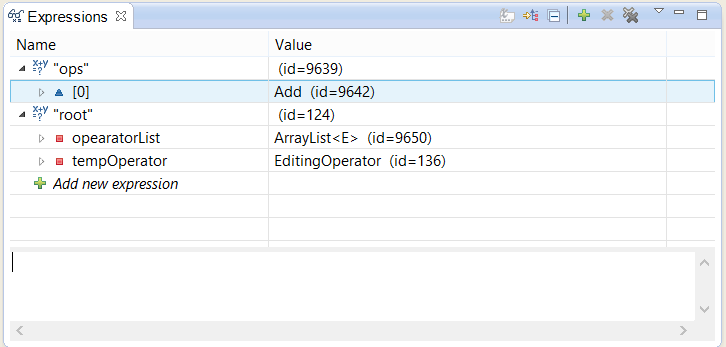
In this case, inspiration was drawn from the Eclipse expressions view. It features a table with hierarchy (treeviewer) that allows adding and editing of items in the same place – ideal to replace the duplicate tables of the function fitting tool. It also has a nice obvious way of adding new elements to the table and a sash window to a text form for additional information.
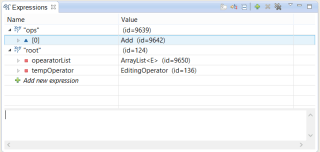 |
| Eclipse expressions view |
7. Optimize
Based on the analysis feedback combined with UI research you can then go ahead and optimize the design to suit. In this step it is useful to use a
usability heuristic checklist to cover common usability areas.
Here is the optimized design for the function fitting tool:
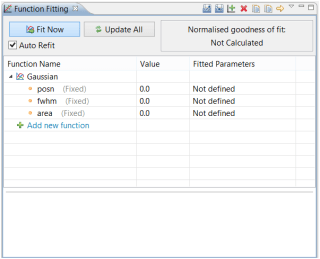 |
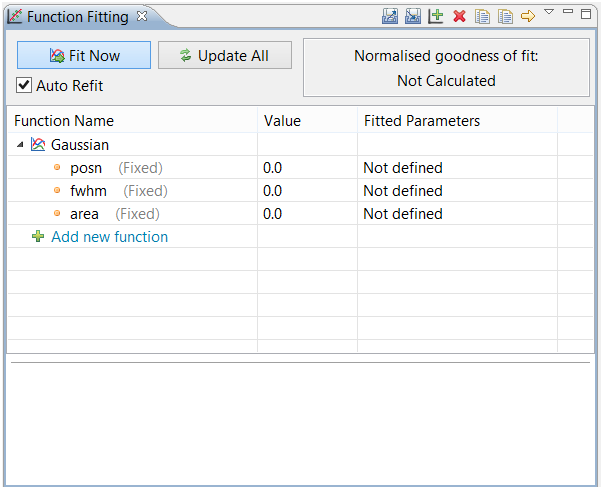
| New design for function fitting tool |
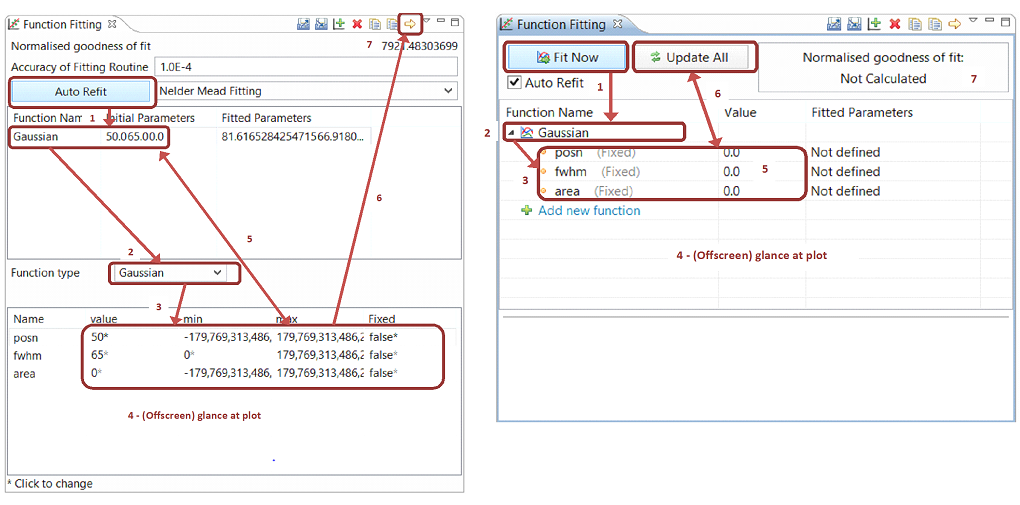
Efficiency of use – the two tables are combined into one table with hierarchy to allow creating and editing of functions all in one place.
Aesthetic and minimalist design – the non-essential UI elements are removed and put in preference pages accessed by the toolbar menu. This reduces the clutter and keeps the user focused on the main tasks at hand.
Visibility of system status – the value for normalised goodness of fit is given a more prominent position. Also the previously obscured update button is given more prominence and screen real estate.
8. Rerun Analysis
For good measure we run the analysis steps on the new design to ensure it fits the bill.
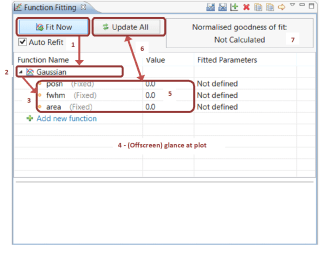 |
| Analyse mouse travel |
9. Conclusion
Further analysis and optimization can of course be done to ensure other tasks are not too overbearing for the user, but when design time is limited, doing a lean design critique is most efficient for a good working design optimized for the main user task.
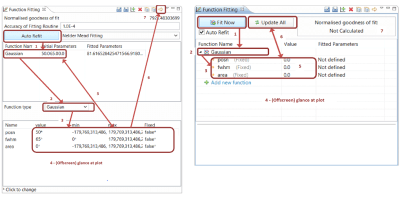 |
| Function Fitting Tool:Before & After |




 Kichwa Coders